

This guide to how to connect Gmail to Google Sheets automatically shows three ways to log emails into a spreadsheet without copy-pasting: Google Apps Script, Google Workspace Studio, and Zapier. Start with Google Apps Script if you want the job done for $0 and you are willing to paste ten lines of code, because it is free on any Google account, runs on a schedule you choose, and has no monthly email cap inside Google's generous daily quotas. Pick Google Workspace Studio if your business already pays for Google Workspace, because it is included in Business Starter at $7 a user a month and builds the same connection with a "When I get an email" starter and an "Add a row" step, no code at all. Pick Zapier if you want the fastest setup and your volume is small, because the free plan covers 100 tasks a month, which is 100 emails logged, and the first paid tier starts at $19.99 a month on annual billing. The method is not the decision here. The volume is: Apps Script costs $0 at 50 emails a month or 5,000, while Zapier's free plan stops at 100 and the 101st email starts the $19.99 tier.
In this article: Quick Answer Box / Why Gmail Won’t Do This on Its Own / Before You Start: The 5-Minute Setup Every Method Needs / The Three Methods at a Glance / Method 1 — Google Apps Script: The Free Way That Costs Nothing / Method 2 — Google Workspace Studio: The No-Code Way You May Already Own / Method 3 — Zapier: The Fastest Way, Free Up to 100 Tasks a Month / Which Columns to Log (and Which to Leave Out) / How to Test Before You Trust It / Cost Maths / The Hidden Costs and Gotchas / Work Out What the Hour Is Worth / Strategic Pivot: Turn the Log Into a System / Pros and Cons / Our Verdict / Frequently Asked Questions / Price Note
Quick Answer Box
This guide to how to connect Gmail to Google Sheets automatically shows three ways to log emails into a spreadsheet without copy-pasting: Google Apps Script, Google Workspace Studio, and Zapier. Start with Google Apps Script if you want the job done for $0 and you are willing to paste ten lines of code, because it is free on any Google account, runs on a schedule you choose, and has no monthly email cap inside Google’s generous daily quotas.
Pick Google Workspace Studio if your business already pays for Google Workspace, because it is included in Business Starter at $7 a user a month and builds the same connection with a “When I get an email” starter and an “Add a row” step, no code at all. Pick Zapier if you want the fastest setup and your volume is small, because the free plan covers 100 tasks a month, which is 100 emails logged, and the first paid tier starts at $19.99 a month on annual billing.
The method is not the decision here. The volume is: Apps Script costs $0 at 50 emails a month or 5,000, while Zapier’s free plan stops at 100 and the 101st email starts the $19.99 tier.
Why Gmail Won’t Do This on Its Own
Gmail has no button, setting, or export that sends emails into Google Sheets. You can forward an email, print it, download it, or star it, and none of those puts a row in a spreadsheet.
That missing bridge is the whole point of this guide. Every method below builds it from the outside: something watches Gmail for the emails you care about, and something writes a row into Sheets for each one. The use case is almost always the same. A shop owner wants order confirmations in one sheet, a freelancer wants every enquiry logged so none slips through, and a landlord wants rent receipts filed for tax time.
The mistake most people make is starting with the tool instead of the filter. They connect everything, watch their sheet fill with newsletters and password resets, and conclude the automation does not work. The first job is always deciding which emails count, and that job takes five minutes in Gmail before any method below touches a line of code or a single Zap.
Before You Start: The 5-Minute Setup Every Method Needs
Every method in this guide to how to connect Gmail to Google Sheets automatically starts the same way, in Gmail, with a label and a filter. Do this first, before you open Apps Script, Workspace Studio, or Zapier, because all three methods read the same label.
First, create a label called to-sheets. In Gmail, open Settings, then “See all settings”, then the Labels tab, and create it. Pick something short: you will type it later, and a typo is the most common reason a new automation logs nothing.
Second, create a filter that applies the label automatically. Click the search bar at the top of Gmail, then “Show search options”, and describe the emails you want: a sender address, a subject phrase, or a word in the body. An order-confirmation filter might be from:orders@yourstore.com subject:"order confirmed". Click “Create filter”, tick “Apply the label”, choose to-sheets, and save it.
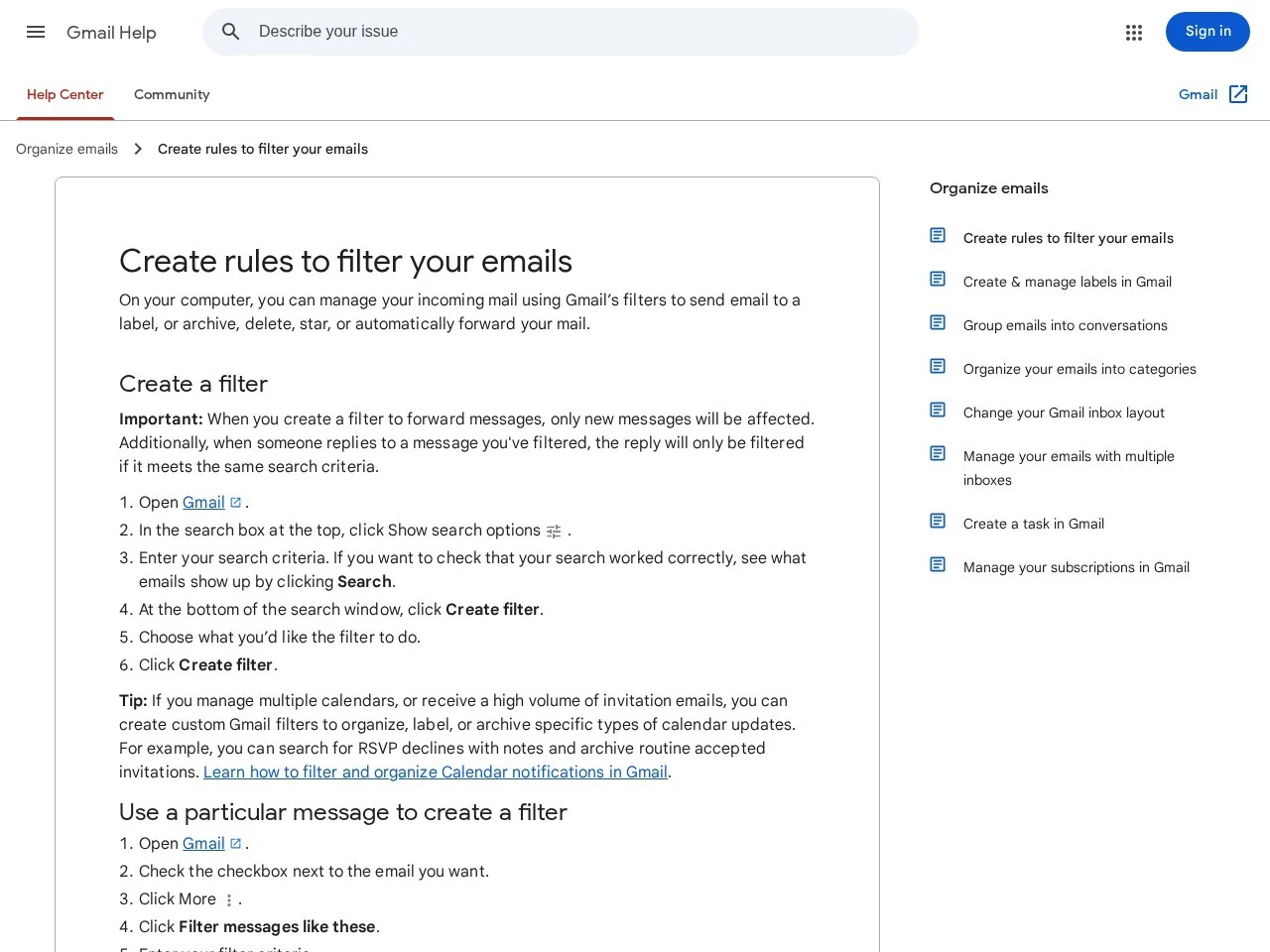
Third, decide what happens to emails after they are logged. The Apps Script method in this guide adds a second label, in-sheets, to every thread it has written, so the same email is never logged twice. Zapier and Workspace Studio remember what they have already processed, so they do not need the second label.
Fourth, make the sheet before you connect anything. Open a new Google Sheet, name it something plain like “Email Log”, and write the column headers in row one: Date, From, Subject, Body, Link. Five columns is enough to start.
Fifth, test the filter by hand. Send yourself a test email that matches it, and check the to-sheets label appears on it.
The Three Methods at a Glance
| Method | Cost | Setup time | Code? | Who it suits |
|---|---|---|---|---|
| Google Apps Script | $0, free on any Google account | 15–30 minutes | Yes, 10 lines to paste | Owners who want $0 forever and don’t mind code |
| Google Workspace Studio | Included in paid Workspace; cheapest entry Business Starter $7/user/mo | 10–15 minutes | No | Businesses already paying for Workspace |
| Zapier | Free up to 100 tasks a month; Professional from $19.99/mo annual | 10 minutes | No | Owners who want the fastest setup at low volume |
If you are still deciding how to connect Gmail to Google Sheets automatically, read the table as a ladder, not a ranking. Apps Script is the cheapest and the most work. Workspace Studio is the middle step, but only if you already pay for Workspace. Zapier is the fastest and the only one with a meter that can surprise you.
Method 1 — Google Apps Script: The Free Way That Costs Nothing
Google Apps Script is the free way to connect Gmail to Google Sheets automatically, and it is the method this guide recommends first. It is built into every Google Sheet under Extensions, then Apps Script. It costs nothing on any Google account, personal or Workspace.
Open the sheet you made earlier. Go to Extensions, then Apps Script. A new tab opens with a script editor and a file called Code.gs containing a placeholder function. Delete the placeholder and paste this script in its place:
function logLabeledEmailsToSheet() {
 const sheet = SpreadsheetApp.getActiveSpreadsheet().getActiveSheet();
 const threads = GmailApp.search('label:to-sheets -label:in-sheets', 0, 50);
 threads.forEach(thread => {
  thread.getMessages().forEach(msg => {
   sheet.appendRow([
    msg.getDate(),
    msg.getFrom(),
    msg.getSubject(),
    msg.getPlainBody().slice(0, 500),
    msg.getPermalink()
   ]);
  });
  thread.addLabel(GmailApp.getUserLabelByName('in-sheets'));
 });
}
Here is what the script does, so you are not running code you do not understand. It searches Gmail for every thread with the to-sheets label that does not yet have the in-sheets label, up to 50 threads per run. For each message, it writes one row with the date, the sender, the subject, the first 500 characters of the body, and a link back to the original email. Then it adds the in-sheets label to the thread, so the next run skips it.
Click Save, name the project “Gmail to Sheets Log”, then click Run. Google will ask for permission to access your Gmail and your Sheets. The script runs under your own account, sees only your own mailbox, and writes only to the sheet you opened it from. Approve it, and the first run writes the rows for every email already carrying the to-sheets label.
Now make it automatic. In the Apps Script editor, click the clock icon on the left, which opens Triggers, then “Add Trigger”. Choose the function logLabeledEmailsToSheet, choose “Time-driven” as the event source, and pick an interval. Every 15 minutes is the sweet spot for most businesses: fast enough that the sheet feels live, slow enough that the script never comes near its daily limits.
The quotas are generous enough that a small business will never touch them. Google’s own quotas page, read on 20 November 2026, allows a personal Gmail account 20,000 email reads and writes a day, 90 minutes of total trigger runtime a day, and 6 minutes per single execution. A Workspace account gets 50,000 reads a day and 6 hours of trigger runtime.
The catch is that you own the code. If Google changes something, or the script throws an error, the fix is yours to make. There is no support line, only an executions page in the Apps Script editor that shows whether each run completed or failed. Google Apps Script

Method 2 — Google Workspace Studio: The No-Code Way You May Already Own
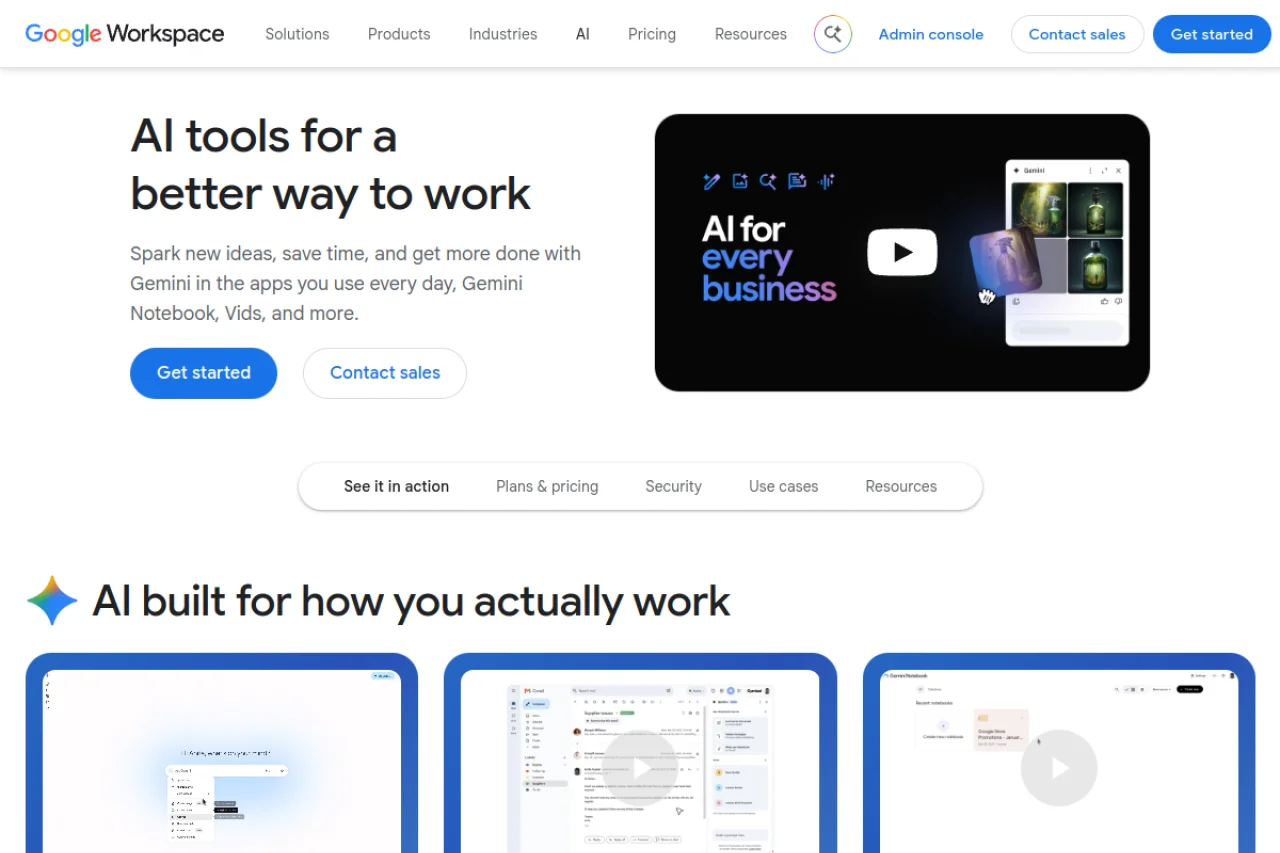
Google Workspace Studio is the no-code way to learn how to connect Gmail to Google Sheets automatically without writing anything, and it is the method most small businesses already own without knowing it. It is included in Google Workspace Business Starter, Standard, and Plus, and in Enterprise Standard and Plus. There is no separate charge for it. If your business pays for Google Workspace, you almost certainly already have it, and you open it at studio.workspace.google.com.
The build takes about ten minutes and no code. Open Workspace Studio, start a new flow, and choose the “When I get an email” starter. Tell it which emails count, using the same filter thinking as before: a sender, a subject phrase, or a label. Then add a step, choose Google Sheets, and choose “Add a row”. Pick the spreadsheet and the worksheet, then map the email fields to your columns: the date to Date, the sender to From, the subject to Subject, and the body to Body.
The price is the part people get wrong, so here it is plainly. Workspace Studio itself costs nothing extra. The Workspace subscription is what you pay, and the cheapest entry is Business Starter at $7 a user a month on a one-year commitment, or $8.40 a user a month on the flexible plan with no commitment. Business Standard is $14 a user a month on annual billing, or $16.80 flexible, and Business Plus is $22, or $26.40 flexible.
The catch is that a free personal Gmail account does not get Workspace Studio at all. It is a paid Workspace feature, for Business and Enterprise editions, and some Education editions where the admin enables it. If your business runs on a personal gmail.com address, this method is not open to you, and that is the honest reason to pick Apps Script instead.
The second catch is the usage limits. Google ran Workspace Studio under promotional access with higher limits until 30 September 2026, and has enforced usage limits since 1 October 2026. Business Standard and Plus, and Enterprise Standard and Plus, can buy an AI Expanded Access add-on for higher limits. Business Starter cannot, which is the one real reason a heavy user might need to step up from the cheapest tier.
The third catch is the introductory price. Google currently shows new customers 10 percent off for 12 months, which cuts Starter to $6.30 a user a month for the first 20 users. That is a genuine saving, and it is also a trap if you budget on it: the standard price applies after the 12 months, so a business that plans its year on $6.30 a month wakes up to $7. Google Workspace pricing
Method 3 — Zapier: The Fastest Way, Free Up to 100 Tasks a Month
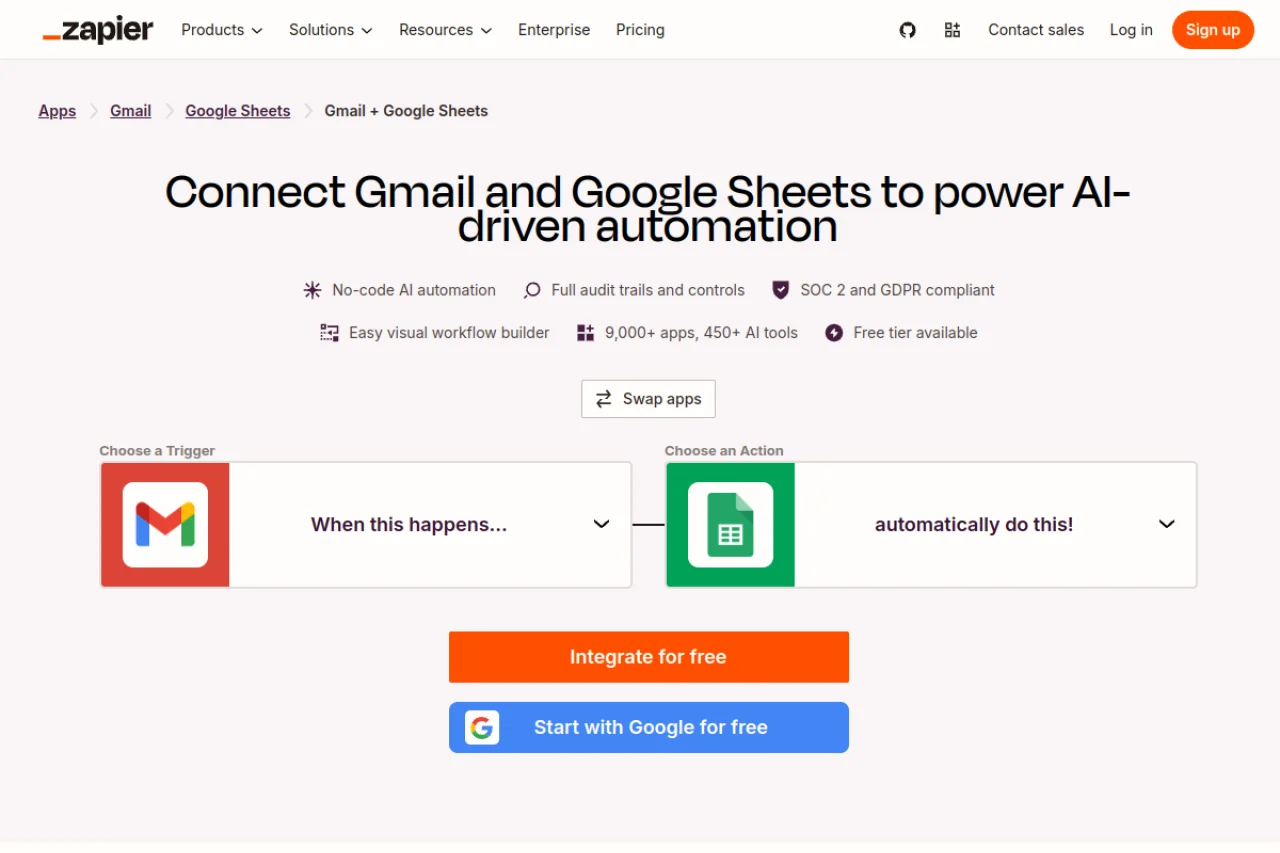
Zapier is the fastest way to connect Gmail to Google Sheets automatically, and it is the method to pick when you want the job done in ten minutes with no code and no Google Workspace subscription. A Zap is a small automated workflow with a trigger and one or more actions. Here the trigger is a new email in Gmail, and the action is creating a row in Google Sheets.
Create a free Zapier account first. New accounts are enrolled in a 14-day trial of the Professional plan with no credit card required, which means your first two weeks run on the paid tier and then drop back to Free unless you choose to pay. Anything that needs a paid feature stops working on day fifteen, so build on the free plan’s rules from the start.
Build the Zap in four steps. First, choose Gmail as the trigger app and “New Email Matching Search” as the trigger event, then connect your Google account. Second, type the same search you would use in Gmail, for example label:to-sheets, so only the emails you care about fire the Zap. Third, choose Google Sheets as the action app and “Create Spreadsheet Row” as the action, then connect the same Google account and pick your spreadsheet and worksheet. Fourth, map the fields: the email’s date to Date, the sender to From, the subject to Subject, the body to Body, and the message link to Link.
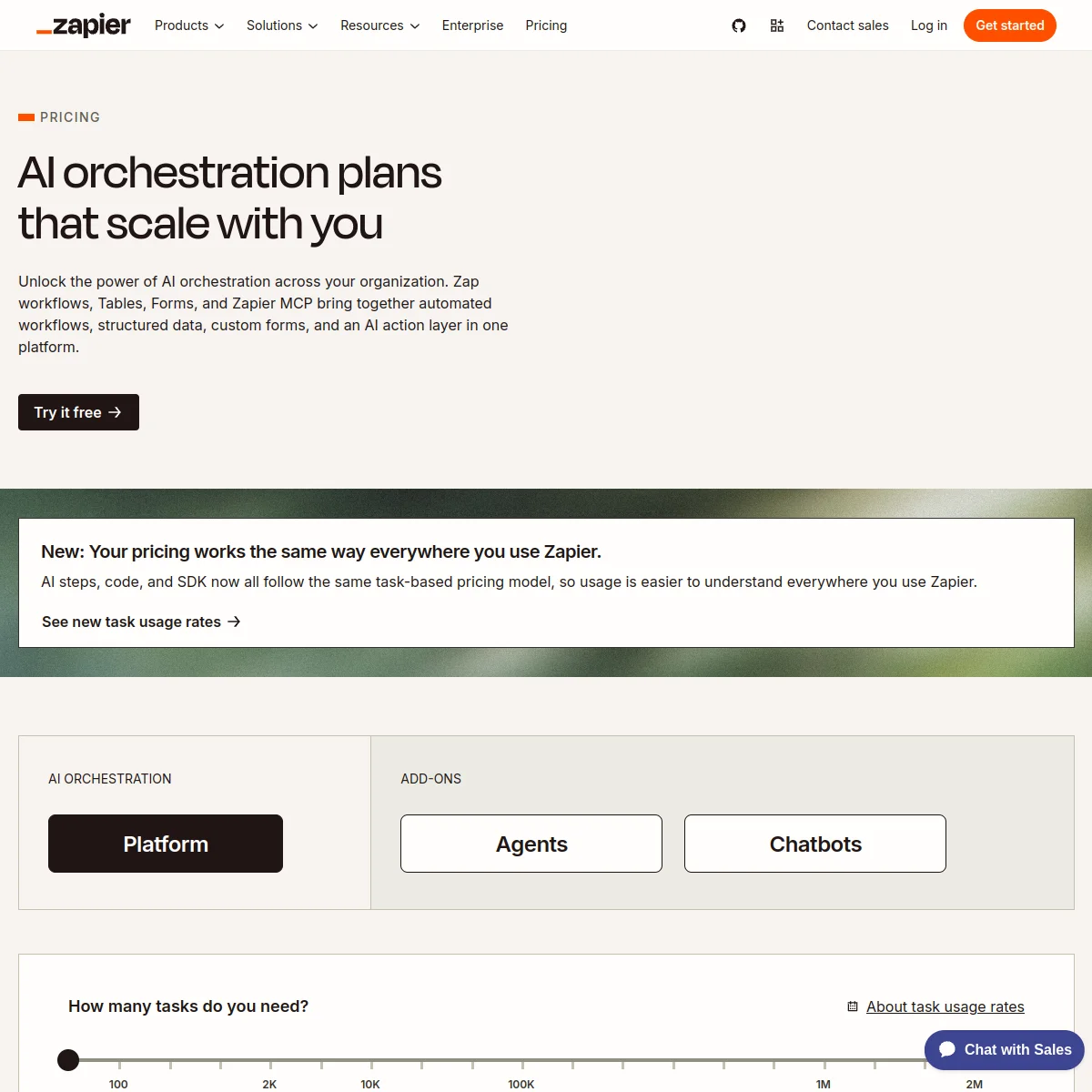
The price is where Zapier needs the most careful reading, because it bills by tasks, not by emails. A task is one action step that completes successfully. The trigger is free: Zapier never charges you a task to check for new mail. Each row it writes costs one task. So a Zap with one trigger and one action costs exactly one task per email, and 100 emails a month costs 100 tasks.
The free plan costs $0 a month and includes 100 tasks a month, two-step Zaps, and the 14-day Professional trial. Professional starts from $19.99 a month on annual billing, or $29.99 billed month to month, for 750 tasks a month, multi-step Zaps, premium apps, and webhooks. Team starts from $69 a month on annual billing for 25 users and shared Zaps. Enterprise is priced by quote. Those figures are from Zapier’s own pricing page, read on 20 November 2026.
The catch is the meter, and it has teeth. When you reach your plan’s task limit, Zapier emails you, and then it switches you to pay-per-task billing unless you have turned that off, charging a higher per-task rate for every task over the limit. If pay-per-task is off, your Zaps pause until the next usage period starts.
The second catch is the polling delay. The free plan checks Gmail every 15 minutes, so a row can take up to a quarter of an hour to appear. If you need the row the second the email lands, neither plan gives you that for Gmail: this is a polling trigger, not an instant one. Zapier pricing
Which Columns to Log (and Which to Leave Out)
Five columns cover most businesses: Date, From, Subject, Body, and Link. The date tells you when it arrived, the sender tells you who it is from, the subject tells you what it is about, the body holds the detail, and the link takes you back to the original email when the sheet is not enough.
Leave out anything you would not want a stranger to read. Email bodies carry passwords in plain text, reset links, one-time codes, and personal details customers never meant to file in a spreadsheet. A sheet that logs full bodies is a sheet that leaks, the first time you share it with a helper or an accountant. Cap the body at 500 characters, as the Apps Script in this guide does, and keep the full email one click away through the link instead. Never log a full credit card number, a password, or a government ID number into a sheet.
Attachments are the other thing to leave out of the row itself. Save the attachment to Google Drive and log the Drive link instead: Apps Script, Zapier, and Workspace Studio can all do that.
One more column worth adding, and it costs nothing: a “Handled” checkbox. Add it as the last column, and tick it when you have acted on the row.
How to Test Before You Trust It
Never trust an automation you have not watched work. The test takes ten minutes and it is the same for all three methods. First, send yourself three test emails that match your filter, with different senders and subjects, and one email that does not match. Then run the automation once by hand: click Run in Apps Script, run the flow in Workspace Studio, or use Zapier’s test step. Check the sheet: three matching rows, no row for the non-matching email, and the right value in every column.
Second, check for duplicates. Wait for the next automatic run, then count the rows. Three test emails should still be three rows. If there are six, the automation is not marking what it has already logged, and it will double every row forever.
Cost Maths
Here is what the three methods in this guide to how to connect Gmail to Google Sheets automatically cost for a small business logging 500 emails a month, for a year.
| Method | Plan for 500 emails a month | Monthly | Yearly |
|---|---|---|---|
| Google Apps Script | Free, any Google account | $0.00 | $0.00 |
| Google Workspace Studio | Included in Business Starter, if you already pay | $0.00 extra | $0.00 extra |
| Google Workspace Studio | Business Starter, bought for this job alone | $7.00 | $84.00 |
| Zapier | Professional, 750 tasks a month | $19.99 | $239.88 |
| Zapier | Professional, billed month to month | $29.99 | $359.88 |
Apps Script costs $0 at every volume in this guide, because 500 emails a month is a rounding error against a 20,000-a-day quota. Workspace Studio costs $0 extra if you already pay for Workspace, and $84 a year if you are buying it for this job alone.
Zapier costs $239.88 a year on annual billing for the same 500 emails, because the free plan’s 100 tasks cover only the first 100, and the 101st email is where the meter starts. The monthly-billing penalty is the quietest cost in this guide. Pay Zapier month to month instead of annually and the same 500 emails cost $359.88 a year, which is $120 more for the same rows. Run the numbers in the AI Cost Calculator before you buy, with your real monthly email count.
The Hidden Costs and Gotchas
First, Gmail has no built-in export to Sheets, and anyone selling you a “Gmail to Sheets” button is selling you one of these three methods with a prettier name. If a tool claims otherwise, it is running one of these three methods behind the scenes, and you are paying for the wrapper.
Second, the filter is the automation. A label that matches too much fills your sheet with newsletters and password resets, and a label that matches too little logs nothing at all. Test the filter in Gmail’s search bar before you build anything on top of it.
Third, duplicates are the most common failure in this whole guide, and they are silent. Apps Script prevents them with the in-sheets label, but only if that label exists in Gmail before the first run. Create both labels by hand before the first run.
Fourth, the Apps Script permission screen scares people, and it should not, but it should be read. Google warns you that the script is unverified and asks you to approve access to Gmail and Sheets. Never paste a script from a stranger without reading it first, because a script with Gmail access can read your whole mailbox.
Fifth, Workspace Studio is not available on a free personal Gmail account, and no workaround changes that. It needs a paid Workspace edition, and the cheapest is Business Starter at $7 a user a month.
Sixth, Workspace Studio’s introductory price is a temporary discount, not the price. The 10 percent offer for new customers lasts 12 months and covers the first 20 users. After it ends, Starter costs $7 a user a month, not $6.30.
Seventh, Zapier’s free plan is a 100-task ceiling, and the 14-day Professional trial hides it. New accounts run on Professional for two weeks, so a Zap that needs multi-step actions or premium apps works fine until day fifteen, when it stops.
Eighth, Zapier’s pay-per-task billing is on by default, and it is the most expensive surprise in this guide. When you hit your task limit, Zapier switches you to pay-per-task unless you have turned it off, and the overage rate is higher than the subscription rate. Turn it off in your billing settings if you would rather have the Zap pause than pay.
Ninth, the 15-minute polling delay is real on every free method, and it is not a bug. Zapier’s free plan checks Gmail every 15 minutes. Apps Script on a 15-minute trigger does the same. If the business needs the row within seconds, none of these three methods is the right tool, and the honest answer is a webhook-based service or a paid plan with instant triggers.
Tenth, email bodies are not data, and parsing them is where every method gets fragile. An order email from a shop puts the total in the subject line one month and in the body the next, and a script that reads a fixed position breaks the day the format changes. Log the whole subject and the first 500 characters of the body, and extract the numbers in the sheet with a formula, where you can see the breakage and fix it.
Eleventh, a spreadsheet full of customer emails is a privacy liability, and the sheet’s sharing settings are the whole security model. A sheet shared with “anyone with the link” is a sheet anyone can read, including every customer email it contains.
Work Out What the Hour Is Worth
Copy-pasting emails into a sheet by hand takes about two minutes per email, once you open it, find the details, switch to the sheet, and type them in. At 500 emails a month, that is a thousand minutes, or nearly seventeen hours, which is two full working days a month spent on copy-paste. At a modest $15 an hour, that is $250 a month, or $3,000 a year, of an owner’s time spent moving text from one Google product to another.
Apps Script costs $0 and about half an hour to set up once, which pays for itself the first day. Workspace Studio costs $0 extra for a business that already pays for Workspace, and the same half hour. Zapier costs $19.99 a month on annual billing at this volume, which is $239.88 a year, and saves the same seventeen hours, which is still a twelve-to-one return on the money.
Count your monthly emails, multiply by two minutes, and multiply by what your hour is worth. If the automation costs more than the time it saves, do not buy it. The AI Time-Saving Calculator does this maths for you, with your real numbers, if you would rather not do it on paper.
Strategic Pivot: Turn the Log Into a System
A sheet full of emails is a log. A sheet full of emails with a “Handled” checkbox, a weekly review, and a count of how many enquiries became customers is a system, and the system is where the money is. The automation in this guide saves the seventeen hours a month. The next step is spending one of those saved hours each week on the sheet itself: which senders write most often, which subjects turn into sales, and which emails sat unanswered for more than a day.
Set a calendar reminder for Friday afternoon, open the sheet, and sort by the “Handled” column. After a month, the sheet tells you where your time actually goes.
If you want the numbers behind that habit, the AI Time-Saving Calculator works out what the automation is worth to your business, in hours and in money, from your real email volume.
Pros and Cons
Pros — the whole method: Every price in this guide was read on the vendor’s own pricing page on 20 November 2026, and the Apps Script quotas were read on Google’s own developers’ page the same day; the whole guide is priced at one volume, 500 emails a month, so the yearly totals are numbers you can budget; all three methods are genuinely free at low volume.
Cons — the whole method: Workspace Studio’s prices are Google’s US list prices, and the price your account sees may differ by country and by the introductory offer; Zapier’s $19.99 Professional price is the annual-billing starting price, and month-to-month billing costs $29.99.
Pros — Google Apps Script: Completely free at any volume a small business will reach; runs on a schedule you choose, down to every five minutes; you own the code, so no vendor can raise the price or retire the feature.
Cons — Google Apps Script: You paste code and you own the code, so errors are yours to fix; no support line and no friendly dashboard, only an executions page; a script that assumes an email format will break the day the format changes.
Pros — Google Workspace Studio: No code at all, built with clicks; included in the Workspace subscription most businesses already pay; runs when the email arrives rather than on a polling schedule.
Cons — Google Workspace Studio: Not available on a free personal Gmail account at all; usage limits have been enforced since 1 October 2026; the introductory 10 percent discount lasts 12 months.
Pros — Zapier: The fastest setup here, about ten minutes from account to first row; works on a free personal Gmail account; the free plan genuinely covers 100 emails a month with no card required.
Cons — Zapier: The free plan stops at 100 tasks a month, and the 101st email starts the $19.99 tier; pay-per-task billing is on by default and charges a higher rate past the limit; the free plan polls Gmail every 15 minutes.
Our Verdict
The best way to connect Gmail to Google Sheets automatically for a small business is Google Apps Script, because it costs $0 at every volume in this guide, it runs on any Google account, and the ten lines of code in this guide are the whole setup.
Buy into Google Workspace Studio instead if your business already pays for Google Workspace, because it is included in the subscription, it needs no code, and it builds the same connection in ten minutes of clicking. Do not buy Workspace for this job alone: the honest reason to pick Studio is that you already own it.
Buy Zapier Professional at $19.99 a month on annual billing only if you want the fastest setup, you send fewer than 750 emails a month through it, and you would rather pay than paste code. Start on the free plan, count your real monthly volume for a month, and upgrade only when the 100-task ceiling is the thing stopping the work.
Whichever method you pick, do the five-minute Gmail setup first and test with three emails before you trust it.
Frequently Asked Questions
Can Gmail automatically export to Google Sheets?
No. Gmail has no built-in export to Sheets, no setting, and no button that does it. You need Google Apps Script, a Google Workspace Studio flow, or a connector like Zapier to copy matching emails into rows.
How do I save Gmail emails to Google Sheets for free?
Label the emails with a Gmail filter, then run a few lines of Google Apps Script from the sheet that searches for that label and appends each email’s date, sender, subject, and link as a row. A time-driven trigger runs it on a schedule at no cost.
Can I connect Gmail to Google Sheets without code?
Yes. Google Workspace Studio builds the connection with clicks if your business pays for Google Workspace, using a “When I get an email” starter and a Sheets “Add a row” step. Zapier does the same with no code on any Google account, free for the first 100 tasks a month.
Is Zapier free for Gmail to Google Sheets?
Yes, up to 100 tasks a month, which is 100 emails logged, because each row written costs one task and the trigger is free. Past 100 emails a month you need Professional, which starts at $19.99 a month on annual billing, or $29.99 billed month to month, for 750 tasks a month.
How do I stop duplicate rows in Google Sheets?
Mark each email as logged so the automation skips it next time. The Apps Script in this guide adds an in-sheets label to every thread it writes, and searches only for threads without that label. Zapier and Workspace Studio remember what they have already processed.
Price Note
Price note — updated 20 November 2026: Prices in this post were checked on 20 November 2026. Zapier’s prices were read on zapier.com/pricing, where the page prints Free at $0 a month for 100 tasks and Professional starting from $19.99 a month; month-to-month Professional is $29.99.
Google Workspace prices are Google’s US list prices — Business Starter $7, Standard $14, and Plus $22 a user a month on a one-year commitment, or $8.40, $16.80, and $26.40 on the flexible plan — corroborated by multiple October and November 2026 reads of Google’s own pricing and help pages; the 10 percent introductory discount for new customers lasts 12 months and covers the first 20 users (annual promo prices $6.30 Starter / $12.60 Standard; flexible promo $7.56 / $15.12; Plus undiscounted).
Google Apps Script is free, with quotas read on Google’s own developers’ page on 20 November 2026. When you are reading this, the price may be lower, or higher, or the free tier may have changed, so check the vendor’s own pricing page before you buy.
Pros
- Every price checked on the vendor's own pricing page on 20 November 2026, and the Apps Script quotas read on Google's own developers' page the same day; the whole guide is priced at one volume, 500 emails a month, so the yearly totals are numbers you can budget; all three methods are genuinely free at low volume.
- Completely free at any volume a small business will reach; runs on a schedule you choose, down to every five minutes; you own the code, so no vendor can raise the price or retire the feature.
- No code at all, built with clicks; included in the Workspace subscription most businesses already pay; runs when the email arrives rather than on a polling schedule.
- The fastest setup here, about ten minutes from account to first row; works on a free personal Gmail account; the free plan genuinely covers 100 emails a month with no card required.
Cons
- Workspace Studio's prices are Google's US list prices, and the price your account sees may differ by country and by the introductory offer; Zapier's $19.99 Professional price is the annual-billing starting price, and month-to-month billing costs $29.99.
- You paste code and you own the code, so errors are yours to fix; no support line and no friendly dashboard, only an executions page; a script that assumes an email format will break the day the format changes.
- Not available on a free personal Gmail account at all; usage limits have been enforced since 1 October 2026; the introductory 10 percent discount lasts 12 months.
- The free plan stops at 100 tasks a month, and the 101st email starts the $19.99 tier; pay-per-task billing is on by default and charges a higher rate past the limit; the free plan polls Gmail every 15 minutes.
The best way to connect Gmail to Google Sheets automatically for a small business is Google Apps Script, because it costs $0 at every volume in this guide, it runs on any Google account, and the ten lines of code in this guide are the whole setup. Buy into Google Workspace Studio instead if your business already pays for Google Workspace, because it is included in the subscription, it needs no code, and it builds the same connection in ten minutes of clicking. Do not buy Workspace for this job alone: the honest reason to pick Studio is that you already own it. Buy Zapier Professional at $19.99 a month on annual billing only if you want the fastest setup, you send fewer than 750 emails a month through it, and you would rather pay than paste code. Start on the free plan, count your real monthly volume for a month, and upgrade only when the 100-task ceiling is the thing stopping the work. Whichever method you pick, do the five-minute Gmail setup first and test with three emails before you trust it.
1 thought on “How to Connect Gmail to Google Sheets Automatically (2026): 3 Free Ways”