

A google sheets slack integration posts a Slack message automatically when a Google Sheet changes, so your team sees the update where they already work. The fastest free route is the official Google Drive app for Slack, but it only notifies you about comments, shares, and access requests — not cell edits. For real "a row changed, post a message" automation, use Zapier: its "New or Updated Spreadsheet Row" trigger sends a Slack message whenever a row changes. Zapier Free costs $0 a month for 100 tasks, and Professional starts at $19.99 a month billed annually ($29.99 billed monthly) for 750 tasks. The totally free route is Google Apps Script with a Slack incoming webhook: no subscription, no task limit, just a short script and a secret URL. If you already pay for Slack Pro, skip to Method 3; if you want it free forever, Method 4 is the honest answer.
Google Sheets Slack Integration (2026): Auto-Message on Every Update
Your spreadsheet just changed. Someone updated the order status, a new lead landed, the stock count dropped below ten. And nobody knows. The sheet sits there, quiet as a filing cabinet, while your team works off yesterday’s numbers.
That is the whole problem a google sheets slack integration solves. It turns a silent spreadsheet into a tap on the shoulder: the moment a row changes, the right Slack channel hears about it. No more finding out on Friday that the order changed on Tuesday.
This guide shows you five ways to build a google sheets slack integration, click by click. One is free and official. One is built into Slack itself, with a catch. One needs no code at all. One is free forever and takes twenty minutes. Pick the one that fits your team.
Every price in this post was checked on the vendor’s own pricing page on 19 November 2026.
Quick Answer Box
A google sheets slack integration posts a Slack message automatically when a Google Sheet changes, so your team sees the update where they already work. The fastest free route is the official Google Drive app for Slack, but it only notifies you about comments, shares, and access requests — not cell edits.
For real “a row changed, post a message” automation, use Zapier: its “New or Updated Spreadsheet Row” trigger sends a Slack message whenever a row changes. Zapier Free costs $0 a month for 100 tasks, and Professional starts at $19.99 a month billed annually ($29.99 billed monthly) for 750 tasks.
The totally free route is Google Apps Script with a Slack incoming webhook: no subscription, no task limit, just a short script and a secret URL. If you already pay for Slack Pro, skip to Method 3; if you want it free forever, Method 4 is the honest answer.
In This Article
- Quick Answer Box
- Before You Start
- Method 1 — The Google Drive App for Slack (Official and Free)
- Method 2 — Slack Workflow Builder (Native, With a Catch)
- Method 3 — Zapier (No Code, the Classic Route)
- Method 4 — Google Apps Script and a Slack Webhook (Free Forever)
- Method 5 — Make and n8n (For Bigger Setups)
- Which Method Should You Pick?
- Cost Maths
- The Hidden Costs and Gotchas
- Work Out What the Hour Is Worth
- Pros and Cons
- Our Verdict
- Frequently Asked Questions
- Price Note
Before You Start
You need three things: a Google account with access to the sheet, a Slack workspace where you can install apps or post to a channel, and the sheet itself, with a header row.
The header row matters: every google sheets slack integration in this guide reads your sheet by its column names. A sheet with “Name” in row 1 and data from row 2 works. A sheet with a merged title in row 1 and headers in row 3 will confuse every tool here. Clean it up first: one header row, no merged cells, no blank columns in the middle.
Decide one thing before you touch any settings: which changes deserve a message. “Every edit” sounds thorough and turns into noise within a day. Most teams only need alerts for one or two events: a new row added, or one specific column changing — an order moving to “Shipped”, a deal moving to “Won”, a stock count dropping under ten. Write that down. It decides which method fits.
Installing an app or creating a webhook usually needs a workspace owner or admin, or permission to install apps. If your workspace blocks app installs, ask an admin first. Nothing here needs a paid Slack plan except Method 2, and nothing needs a paid Google plan — a free Gmail account works for every method.
Keep a test channel, #sheet-alerts-test, and send every test message there, not to the channel your whole company reads.
Method 1 — The Google Drive App for Slack (Official and Free)
This is the official route, made by Slack itself, and it costs nothing. It is also the method most people install first and then misunderstand.
The Google Drive app connects your Google account to Slack. Once it is in, you can create a new Doc, Sheet, or Slide without leaving Slack, share a Drive file into a channel as a rich preview card instead of a bare link, and search your Drive files from Slack’s search bar.
It also notifies you inside Slack when someone comments on one of your files, suggests an edit, requests access, or shares a file with you.
What it does not do is watch cells. Change a number in a sheet and nothing happens in Slack. Add a row and nothing happens. That is the single most important fact in this guide.
Install it anyway. It takes five minutes, it is free, and the comment notifications alone are worth it for a team that lives in shared sheets.
Step 1: Install the app
Open Slack on your computer. In the left sidebar, click Agents & tools — if you cannot see it, click More first, since Slack renamed this menu and older guides call it Tools. Click Apps, search for Google Drive, and open its listing in the Slack Marketplace. Click Add to Slack, then Add Google Drive app, then Allow. One person does this once for the whole workspace.
Step 2: Connect your Google account
Installing the app is only half the job. Every person who wants the features must connect their own Google account: open the Google Drive app in Slack, click Connect Google Drive, pick your Google account, and sign in. The install is per workspace; the connection is per person. If your teammate never connects, they get no notifications and cannot share files through the app.
Step 3: Share a sheet and tune notifications
Paste a Google Sheet link into any channel. Slack expands it into a preview card with the file title and type instead of a bare URL. Or type /google-drive in the message box to create a new Sheet. You can grant view access right from the message, and reply to a comment notification inside Slack — your reply syncs back to the sheet.
Then open the Google Drive app’s Notifications section. The default is on for comments, shares, and access requests. Leave comments on. Turn off the rest if the noise bothers you.
What this method is actually good for
A team that shares sheets in Slack and wants to know when someone comments on a number or asks for access. That is it. If your real need is “tell me when the stock count changes”, move on to Method 3 or 4.

Method 2 — Slack Workflow Builder (Native, With a Catch)
Slack’s own Workflow Builder lets you build automations inside Slack without code. It has Google Sheets steps. The catch is the direction they run: they push data from Slack into a sheet. They do not watch a sheet and post back to Slack.
That sounds like a small detail. It is the whole ballgame. If your need is “someone fills in a form in Slack and the answer lands in a sheet”, this method is perfect. If your need is “a sheet changes and Slack hears about it”, it cannot do it at all.
What you need
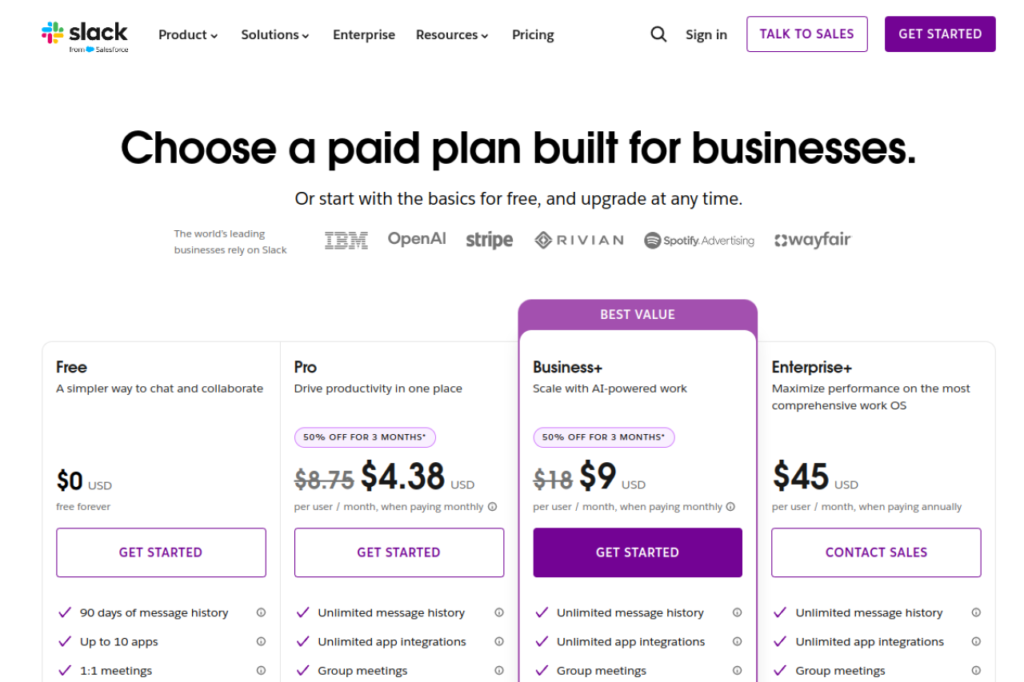
A paid Slack plan. Workflow Builder and its Google Sheets steps are available on paid plans only. Pro costs $8.75 per user a month billed monthly, or $7.25 per user a month billed annually. On the Free plan, you will not see the Google Sheets steps at all.
For a five-person team, that is $36.25 a month on annual billing, or $435 a year, just to unlock this door. You also need the Google Sheets for Workflow Builder app installed, and an admin may need to switch on “workflow steps from apps”.
The four Google Sheets steps
Open Workflow Builder, create a workflow, and search the step library for Google Sheets. You will find four steps: Add, Select, Update, and Delete a spreadsheet row.
Add a spreadsheet row is the one most teams use: a Slack form collects answers, and each one lands as a new row in your tracking sheet. Select a spreadsheet row pulls data the other way, but it only runs when someone starts the workflow by hand.
The quirks that bite
Slack can only add data to an empty row. If your sheet has pre-formatted cells or dropdown menus, the new row lands below the last formatted cell — which can be hundreds of rows lower than you expect. Keep a clean sheet with no formatting below your data. Dates and times come in at UTC+0, and you cannot change that.
Only one Google account can be connected to Slack at a time for these steps, and they run under the account of the person who built the workflow. If that person leaves the company, the workflow breaks.
Use Workflow Builder when the flow starts in Slack and ends in a sheet: intake forms, feedback logs, lead trackers, request queues. Do not use it for sheet-to-Slack alerts — use Method 3 or 4.
Method 3 — Zapier (No Code, the Classic Route)
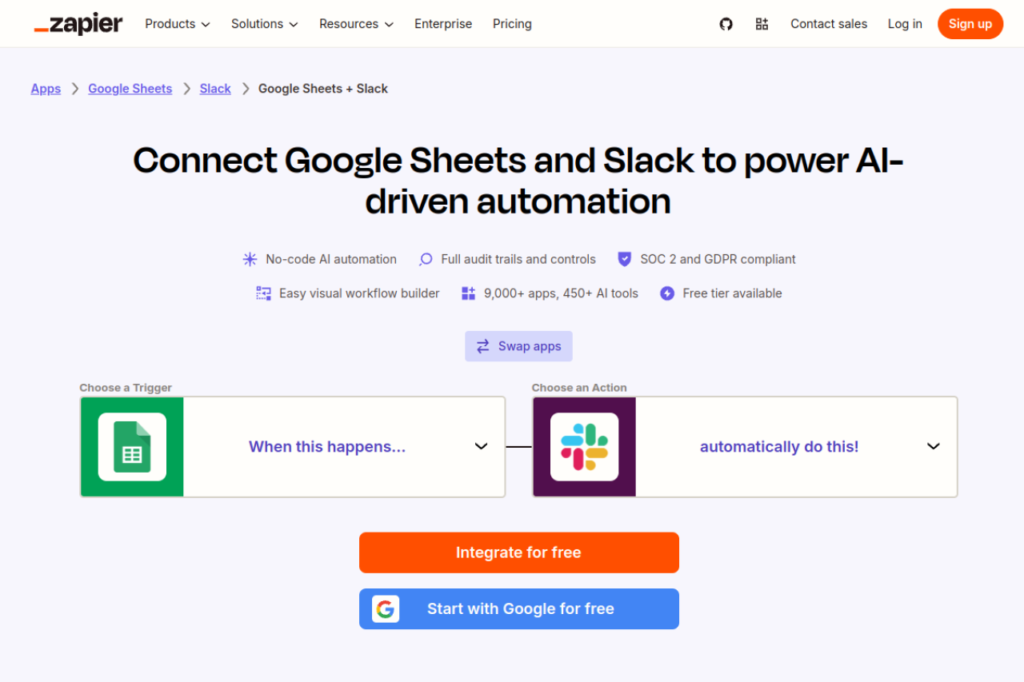
This is the method most small businesses end up using, and the one Zapier’s own integration page is built around. A google sheets slack integration built on Zapier works like this: a Zap watches your sheet, and when a row is added or changed, it posts a message to Slack.
No code, no server, no maintenance. You build it in a browser in about ten minutes.
Zapier’s Google Sheets triggers for this pair are New Spreadsheet Row and New or Updated Spreadsheet Row. The second one is the one you want: it fires when a row is added or when a value in a row changes. There is also a Team Drive variant for shared drives.
Step 1: Pick the template
Go to Zapier’s Google Sheets and Slack integration page and pick the template “Send Slack messages whenever Google Sheets rows are updated”. It saves you from choosing the trigger and action by hand.
Step 2: Connect Google Sheets
Choose Google Sheets as the trigger app and New or Updated Spreadsheet Row as the trigger event. Sign in with the Google account that owns the sheet, then pick the spreadsheet, the worksheet (the tab), and a trigger column.
Zapier watches that one column for changes. Pick the column that actually changes when something meaningful happens — the Status column, not the Customer Name column. If you pick a column that never changes, the Zap never fires. If you pick one that changes constantly, your channel floods.
Step 3: Connect Slack
Choose Slack as the action app and Send Channel Message as the action event. Sign in to Slack, pick the channel, and write the message using fields from the sheet: “New order: {{Customer Name}} — {{Product}} — {{Status}}”. Test the step once and check that the message lands in your test channel as expected.
Step 4: Turn it on and watch the first day
Turn the Zap on, then edit one row in the sheet and wait. On the Free plan, Zapier checks your sheet every 15 minutes, so the message can take up to 15 minutes to arrive. Professional checks every 2 minutes. Watch the first day closely. If the channel gets five messages for one edit, your trigger column is wrong.
What the free plan really gives you
Zapier Free costs $0 a month and includes 100 tasks a month, two-step Zaps, and unlimited Zaps. A task is one successful action, so one Slack message equals one task. The trigger itself does not count.
A hundred tasks covers about three messages a day. A sheet that changes ten times a day burns through the free plan in ten days, and then your Zaps pause until next month. The free plan allows only two-step Zaps, which is exactly what this setup needs.
Professional starts at $19.99 a month billed annually ($29.99 billed monthly) for 750 tasks a month, and adds multi-step Zaps, webhooks, and faster checking. Team starts at $69 a month billed annually for 2,000 tasks and up to 25 users. New accounts get a 14-day Professional trial with no credit card required.
Zapier also exposes these Sheets and Slack actions through MCP — our MCP server guide https://aitbizhub.com/mcp-server-for-ai-tools/ explains how that connection works.
Method 4 — Google Apps Script and a Slack Webhook (Free Forever)
If you want the same result as Zapier with a $0 bill forever, this is the route. A google sheets slack integration built on Apps Script is JavaScript that runs on Google’s servers, inside your sheet, and posts to Slack through an incoming webhook — a special URL that accepts messages for one channel.
It takes about twenty minutes, most of it clicking through setup screens. The code itself is short. The trade-off is maintenance: when it breaks, you fix it.
Step 1: Create the Slack webhook
In Slack, go to api.slack.com/apps and create a new app from scratch. Name it “Sheet Alerts” and pick your workspace. In the app settings, switch on Incoming Webhooks, then click Add New Webhook to Workspace and choose the channel.
Treat that URL like a password. Anyone who has it can post messages to your channel. Never paste it into a sheet cell, a shared document, or a screenshot.
Step 2: Open the script editor
Open your Google Sheet. Click Extensions, then Apps Script. Delete the empty function already there.
Step 3: Paste the code
Paste in this script, replacing the webhook URL and the column number with your own. It only posts when the edit happened on the right tab and in the status column — that is your flood control:
const WEBHOOK_URL = 'https://hooks.slack.com/services/XXX/YYY/ZZZ';
const SHEET_NAME = 'Orders';
const STATUS_COLUMN = 4;

function onSheetEdit(e) {
  const sheet = e.range.getSheet();
  if (sheet.getName() !== SHEET_NAME) return;
  if (e.range.getColumn() !== STATUS_COLUMN) return;
  const row = e.range.getRow();
  const values = sheet.getRange(row, 1, 1, 4).getValues()[0];
  UrlFetchApp.fetch(WEBHOOK_URL, {
    method: 'post',
    contentType: 'application/json',
    payload: JSON.stringify({ text: 'Order update: ' + values.join(' | ') }),
    muteHttpExceptions: true
  });
}
Step 4: Attach the trigger — and do not name it onEdit
This is the step that breaks most first attempts. A function literally named onEdit runs as a simple trigger, and simple triggers cannot call external services like UrlFetchApp. That is why the function above is called onSheetEdit, not onEdit.
In the Apps Script editor, click the clock icon (Triggers) in the left sidebar, then Add Trigger. Set the function to onSheetEdit, the event source to From spreadsheet, and the event type to On edit. Save it, then authorise the script under your own account when Google asks.
Step 5: Test it
Change one value in the status column. A message should land in Slack within seconds. If nothing arrives, check the Executions page in the Apps Script editor: it shows every run and its error. The usual culprits are a wrong sheet name, a wrong column number, or a webhook URL with a typo.
The limits, honestly
Apps Script is free, but it is not unlimited. Consumer Gmail accounts get 20,000 URL Fetch calls a day and 90 minutes of total trigger runtime a day; Google Workspace accounts get 100,000 calls and 6 hours. One script run is capped at 6 minutes. For a sheet that changes a few hundred times a day, you will never touch these limits.
Triggers only fire on human edits. If another script, a form, or an API writes to your sheet, the edit trigger does not run. If your sheet is filled by an external system, use a time-driven trigger instead — a clock that checks the sheet every few minutes and posts about new rows it finds.
Method 5 — Make and n8n (For Bigger Setups)
If Zapier feels too expensive at volume, or you want more control, Make and n8n do the same job with different billing. A google sheets slack integration on either platform is worth knowing about, and both are overkill for a single sheet-to-Slack alert. If you have not picked a platform yet, our guide to the best AI automation tools https://aitbizhub.com/best-ai-automation-tools/ compares the options.
Make (formerly Integromat) watches your sheet with a Watch Rows module and posts to Slack with a Slack module. You draw the flow on a canvas instead of filling in forms. Make bills in credits: most module runs cost one credit.
The Free plan costs $0 a month for 1,000 credits, with a 15-minute minimum interval between runs. Core costs $9 a month billed annually ($10.59 billed monthly) for 10,000 credits, Pro costs $16 a month billed annually for the same 10,000 credits, and Teams costs $29 a month billed annually.
The credit maths matters. A simple scenario uses two or three credits per run, so 200 updates a month costs about 600 credits — inside the free plan. A scenario with ten modules costs ten credits a run, and the same 200 updates suddenly costs 2,000 credits. Count modules, not runs.
n8n bills by executions instead: one workflow run costs one execution, however many steps it has. Cloud Starter costs €20 a month billed annually for 2,500 executions, and Pro costs €50 a month billed annually for 10,000 executions. Note the currency: n8n prices in euros, not dollars, so the “$20” figure in old blog posts is wrong. The self-hosted Community Edition has no licence fee — you pay for a server instead.
Our n8n vs Make comparison breaks down the pricing and trade-offs. If you already use Make or n8n, add this flow there and pay nothing extra. If this is your only automation, do not buy a platform for it — use Zapier Free or Apps Script.
Which Method Should You Pick?
There is no single best google sheets slack integration. There is a best method for your team, your budget, and how much you enjoy maintaining things.
| Method | Cost | Code? | Speed | Best for |
|---|---|---|---|---|
| Google Drive app | $0 | No | Instant for comments | Sharing sheets and comment alerts |
| Workflow Builder | Slack Pro from $7.25/user/mo annual | No | Instant | Slack forms that fill a sheet |
| Zapier | Free to $19.99/mo annual | No | Up to 15 min on Free | The classic sheet-to-Slack alert |
| Apps Script + webhook | $0 | A little | Seconds | Free forever, full control |
| Make | Free to $9/mo annual | No | 15 min on Free | Teams already on Make |
| n8n | €20/mo annual or self-hosted free | A little | Near instant | Teams already on n8n |
If you want it working today with no code and no bill, start with Zapier Free. If the free task limit bites within a month, switch to Apps Script before you pay for Professional — the saving is $239.88 a year.
If your team already pays for Slack Pro, Workflow Builder is free to you, but remember it runs the wrong direction for alerts. It fills sheets from Slack. It does not watch sheets. If you only need comment notifications and easy sharing, stop at Method 1.
Cost Maths
Here is what a google sheets slack integration costs for a realistic small team: five people, one sheet, about 200 updates a month. Slack and Google Workspace are already paid for.
| Method | Monthly cost | Yearly cost |
|---|---|---|
| Google Drive app | $0 | $0 |
| Zapier Free (100 tasks) | $0, but stops at 100 messages | $0, then it pauses |
| Zapier Professional | $19.99 billed annually | $239.88 |
| Apps Script + webhook | $0 | $0 |
| Make Free (1,000 credits) | $0 | $0 |
| Make Core | $9 billed annually | $108 |
| n8n Cloud Starter | €20 billed annually | €240 |
| n8n self-hosted Community | $0 licence + server from about $6 | About $72 for the server |
Two hidden numbers sit behind this table. Slack Pro at $7.25 per user a month on annual billing is $36.25 a month for five people, or $435 a year — the price of unlocking Workflow Builder, not of the integration.
Google Workspace Business Starter costs $7 per user a month on annual billing ($8.40 on the Flexible Plan), so $35 a month for five people — but only if you do not already have Workspace. The integration does not need a paid Workspace plan at all.

The honest total for most teams is $0. The moment you pay, you are paying for volume or speed, not for the connection itself.
The Hidden Costs and Gotchas
Every google sheets slack integration in this guide has at least one trap. Here are the eleven that actually cost teams time or money.
First, the Drive app does not watch cells. People install the official app, change a number, wait, and conclude the integration is broken. It is not broken. Comments, shares, and access requests are its whole notification world.
Second, Zapier’s free plan runs out fast. One hundred tasks a month sounds generous until you count: one message per row change, so a sheet that changes ten times a day hits the limit on day ten. Then your Zaps pause until next month, silently.
Third, sorting and deleting rows can misfire Zapier. The “New or Updated Spreadsheet Row” trigger tracks rows by position. Sort the sheet and Zapier may see every row as changed. Delete a row and it may miss the next change entirely. Do not sort a live sheet by hand while a Zap watches it.
Fourth, the trigger column decides everything. Pick a column that changes when something meaningful happens. Pick the wrong one and you get silence or floods.
Fifth, Workflow Builder runs the wrong direction. Its Google Sheets steps push Slack data into a sheet. They do not watch a sheet and post to Slack. Teams buy Slack Pro for this feature and then discover it cannot do the job they bought it for.
Sixth, the webhook URL is a secret. Anyone with it can post to your channel, and there is no login prompt. Do not paste it into a sheet cell, a shared doc, or a screenshot. If it ever leaks, delete that webhook in Slack and create a new one.
Seventh, simple triggers cannot call the internet. A function named onEdit in Apps Script cannot use UrlFetchApp. You need an installable trigger attached to a differently named function. This is the most common reason Apps Script-to-Slack setups fail on the first try.
Eighth, triggers do not fire on API or script edits. If a form, another script, or an external tool writes to your sheet, the edit trigger never runs. Your automation goes quiet and nothing looks broken. If your sheet is fed by another system, use a time-driven trigger that polls for new rows instead.
Ninth, the person who sets it up owns it. Zapier connections, Apps Script triggers, and Workflow Builder steps all run under one person’s account. When that person leaves or loses access to the sheet, the automation breaks silently. Set these up under a shared team account.
Tenth, Slack’s free plan forgets. Messages stay searchable for 90 days on the Free plan, and data is deleted after a year. If the alert history matters, keep the sheet as the record, not Slack.
Eleventh, n8n prices in euros. Cloud Starter is €20 a month billed annually, not $20. Old blog posts that say “$20” are wrong. Check the currency before you compare prices across tools.
Work Out What the Hour Is Worth
Every method in this guide saves the same thing: the minutes your team spends checking a sheet and working from an old copy of it. Count the checks. If four people open the sheet three times a day, and each check costs two minutes, that is 24 minutes a day — about eight hours over a working month.
Our free AI Time-Saving Calculator does that maths for you: put in how many people check, how often, and how long each check takes, and it shows the hours and the money you get back each month. Run your numbers through it before you choose between a free method and a paid one.
Pros and Cons
The google sheets slack integration as a whole
Pros: your team sees updates where they already work, instead of opening a sheet to check; the free routes genuinely cost $0; setup takes minutes, not days; every method here works with a free Google account; and the Slack history doubles as a log of what changed.
Cons: the official free app does not notify on cell edits, which is what most people actually want; the no-code route polls every 15 minutes on the free plan; every method needs someone to own it, and it breaks silently when that person leaves; and a noisy sheet floods the channel fast.
Zapier
Pros: the easiest setup in this guide, with a ready-made template; no code; the free plan covers a quiet sheet; and the 14-day Professional trial lets you test at full speed before paying.
Cons: 100 tasks a month runs out fast on a busy sheet; the 15-minute polling delay on Free; and the price jumps to $19.99 a month billed annually the moment you need more.
Google Apps Script
Pros: completely free, with no task limit; fires in seconds; full control over the message format; and it runs on Google’s servers, so there is nothing to host.
Cons: you maintain it yourself; the simple-trigger trap catches everyone once; triggers ignore API and script edits; and it runs under one person’s account.
Our Verdict
For most small businesses, the best google sheets slack integration is the one you will actually maintain, and that starts with Zapier Free. Build the “New or Updated Spreadsheet Row” Zap in ten minutes, point it at a test channel, and watch it for two weeks. If it stays under 100 tasks a month, you are done, and you paid nothing.
If it blows past the free limit, do not upgrade on reflex. Spend twenty minutes on the Apps Script method instead. It does the same job, fires faster, and costs $0 forever.
Install the Google Drive app either way. It is free, it takes five minutes, and comment notifications are genuinely useful. Just do not expect it to tell you when a number changes — that was never its job. Whatever you build, set it up under a shared team account and pick one trigger column.
Frequently Asked Questions
Can Google Sheets send notifications to Slack by itself?
Not for cell changes, no. Google Sheets has no built-in Slack notification setting, and the official Google Drive app for Slack only notifies you about comments, shares, and access requests. A google sheets slack integration that watches cells needs an automation in between: Zapier, Make, n8n, or a Google Apps Script posting to a Slack webhook.
Is the google sheets slack integration free?
Yes, three ways. The Google Drive app for Slack is free. Zapier Free costs $0 a month for 100 tasks, which covers a quiet sheet. And Google Apps Script with a Slack incoming webhook is free with no task limit — you only pay with twenty minutes of setup.
How do I get a Slack notification when a specific cell changes?
Watch one column, not the whole sheet. In Zapier, set the trigger column to the cell’s column and add a filter so the Zap only continues when the value matches what you care about — for example, only when Status becomes “Won”. In Apps Script, check the edited range’s column and ignore everything else. Narrow the trigger, or the channel floods.
Why is my Zapier Slack message delayed?
On the Free plan, Zapier checks your sheet for changes every 15 minutes, so a message can arrive up to 15 minutes after the edit. That is polling, not a bug. Professional checks every 2 minutes. If you need instant alerts for free, use Apps Script instead — its edit trigger fires in seconds.
Can I connect Google Sheets to Slack without Zapier or any third-party tool?
Yes. The free route is Google Apps Script plus a Slack incoming webhook: a short script in your sheet posts a message to Slack whenever the right cell changes, with no third party in the middle. The official Google Drive app is also third-party-free, but it only covers comments and shares. Slack Pro’s Workflow Builder moves data between Slack and Sheets, but it cannot watch a sheet and alert a channel.
Price Note
Price note — updated 19 November 2026: Prices in this post were checked on 19 November 2026. When you are reading this, the price may be lower or higher — always check the official pricing page before you buy.
Pros
- Your team sees updates where they already work, instead of opening a sheet to check
- the free routes genuinely cost $0
- setup takes minutes, not days
- every method here works with a free Google account
- and the Slack history doubles as a log of what changed
- The easiest setup in this guide, with a ready-made template
- no code
- the free plan covers a quiet sheet
- and the 14-day Professional trial lets you test at full speed before paying
- Completely free, with no task limit
- fires in seconds
- full control over the message format
- and it runs on Google's servers, so there is nothing to host
Cons
- The official free app does not notify on cell edits, which is what most people actually want
- the no-code route polls every 15 minutes on the free plan
- every method needs someone to own it, and it breaks silently when that person leaves
- and a noisy sheet floods the channel fast
- 100 tasks a month runs out fast on a busy sheet
- the 15-minute polling delay on Free
- and the price jumps to $19.99 a month billed annually the moment you need more
- You maintain it yourself
- the simple-trigger trap catches everyone once
- triggers ignore API and script edits
- and it runs under one person's account
For most small businesses, the best google sheets slack integration is the one you will actually maintain, and that starts with Zapier Free. Build the "New or Updated Spreadsheet Row" Zap in ten minutes, point it at a test channel, and watch it for two weeks. If it stays under 100 tasks a month, you are done, and you paid nothing. If it blows past the free limit, do not upgrade on reflex. Spend twenty minutes on the Apps Script method instead. It does the same job, fires faster, and costs $0 forever. Install the Google Drive app either way. It is free, it takes five minutes, and comment notifications are genuinely useful. Just do not expect it to tell you when a number changes — that was never its job. Whatever you build, set it up under a shared team account and pick one trigger column.